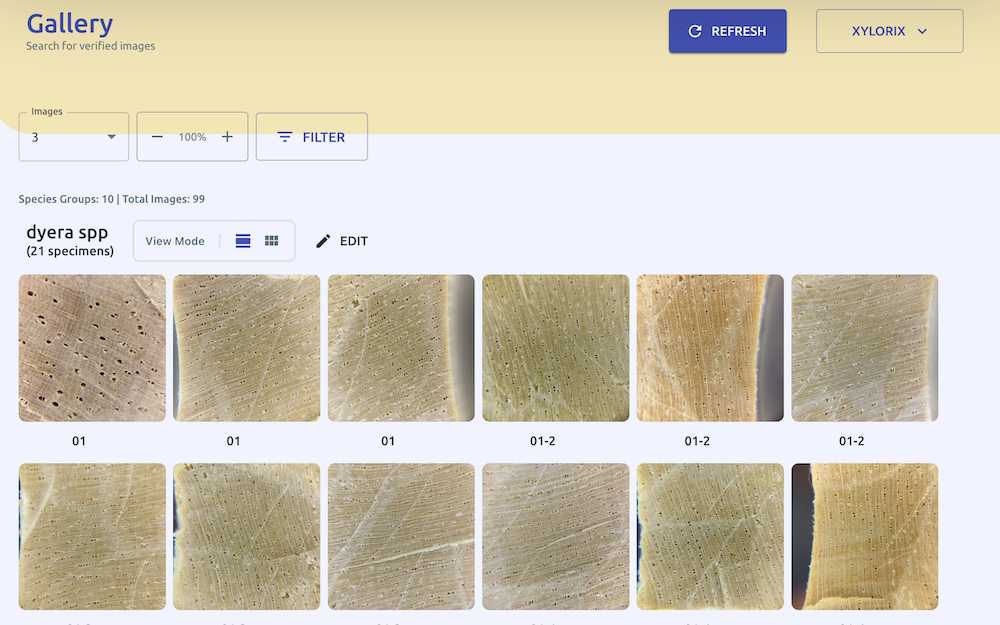
Xylorix Toolkit Verifier
Overview
The Verifier provides our users a clear and concise interface to verify and update wood images that have been collected using the Harvester.
The Verifier is accessible via the Xylorix Toolkit webapp.
How to Use the Verifier
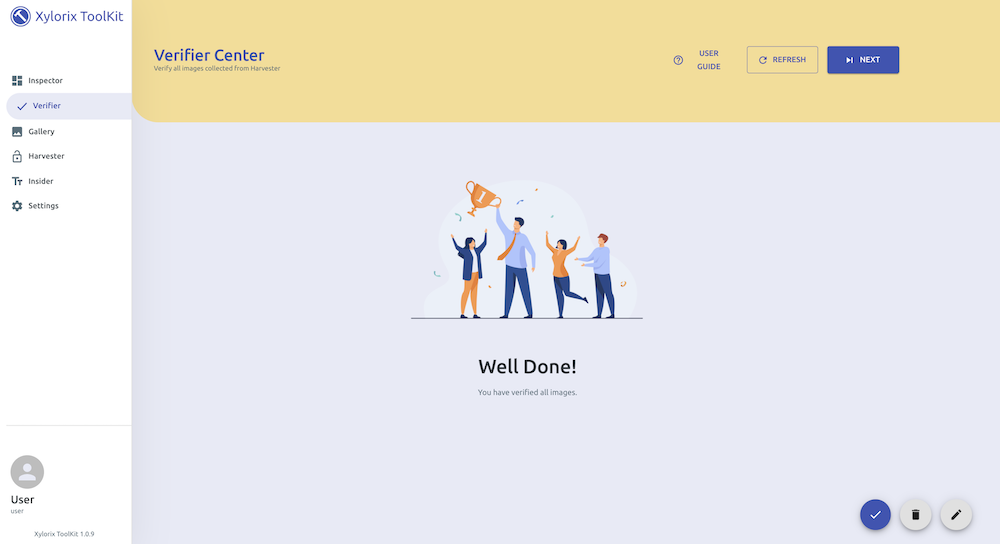
After logging into the Xylorix Toolkit, navigate to the Verifier page by selecting the Verifier tab on the left. Images that are captured using the Harvester App will be loaded and displayed on this page. If the images are not loaded, simply click on the 'Refresh' button on the upper-right of the page.
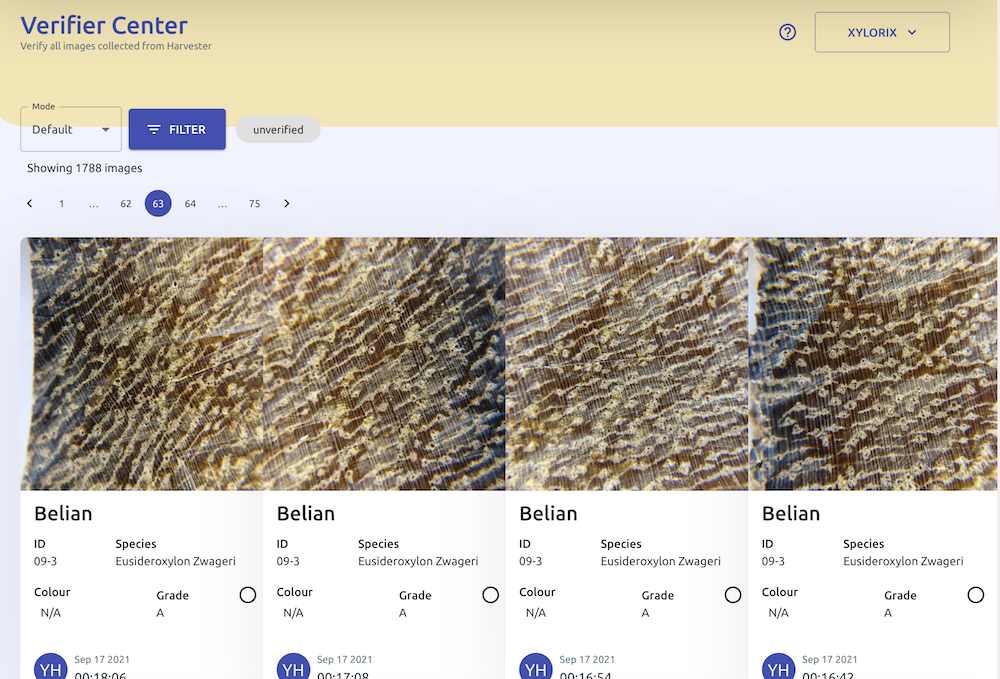
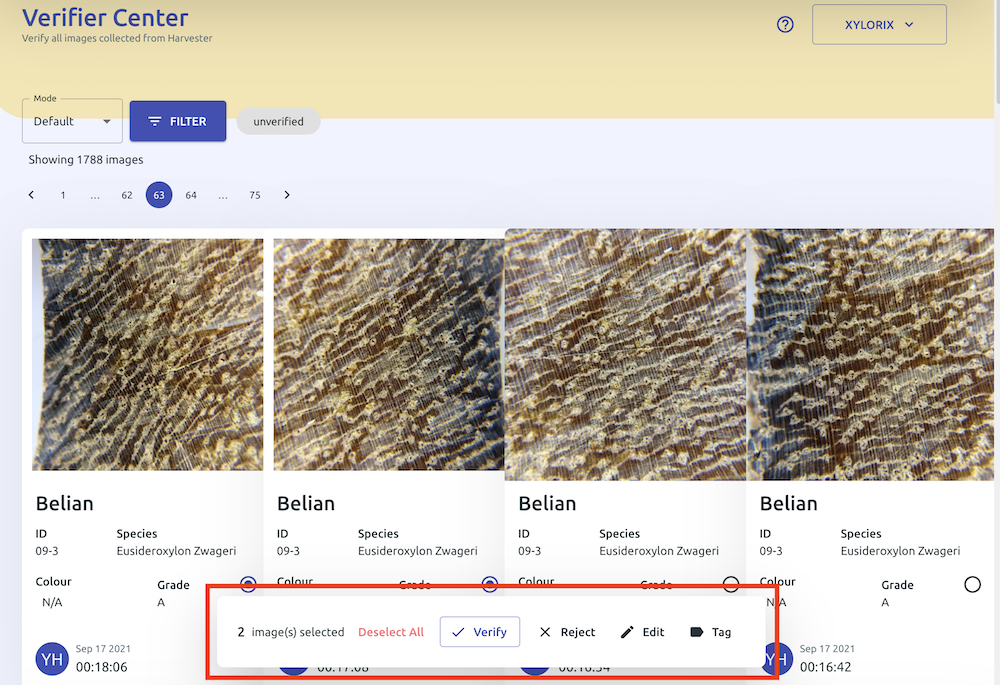
On the Verifier page, there are 3 main actions you can use (highlighted in the red box), from the left: VERIFY, REJECT, EDIT and TAG. To verify:
- a) Make sure the image quality is good (not blurry, clearly visible and identifiable wood anatomical features)
- b) Make sure the given information of the images is correct.
Once verified, select the image by tapping on the empty circle below the image, and click the VERIFY button. You can reject unaccepted images by selecting them and tapping the REJECT button. You can verify or reject multiple images at a time by selecting multiple images and tapping on the action button.
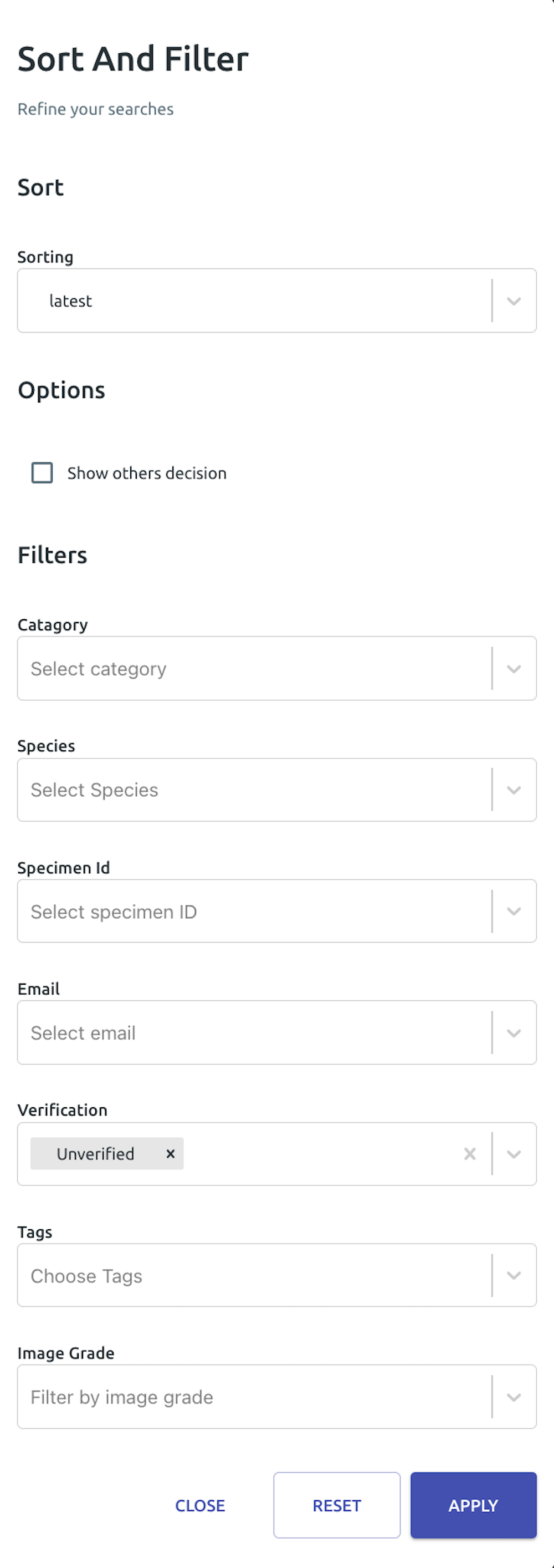
You can sort and filter the images by launching the filter function, and select your criteria based on needs as shown here.
Once all the images in the current batch are done, press the NEXT button to load the next batch of images for verification. If all images are verified, you can navigate to the Gallery page by selecting the Gallery tab.
In the Gallery page, you can view and search for verified wood images.