Xylorix Inspector
Overview
Xylorix Inspector App is the dedicated app for rapid and robust wood identification and verification through the use of models developed using machine learning and image recognition technologies.
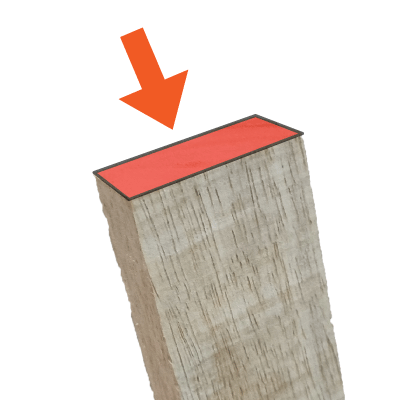
The Xylorix AI models identify/verify wood pieces by looking at its magnified end-grain/transverse surface with visible macroscopic features, which requires a 24x magnification macro lens (such as the Xylorix WIDK-24X01 Macro Lens). As of now, not all wood species are covered by our public AI models, which can be discovered in the Xylorix Model Store.
Getting Started with Xylorix Inspector
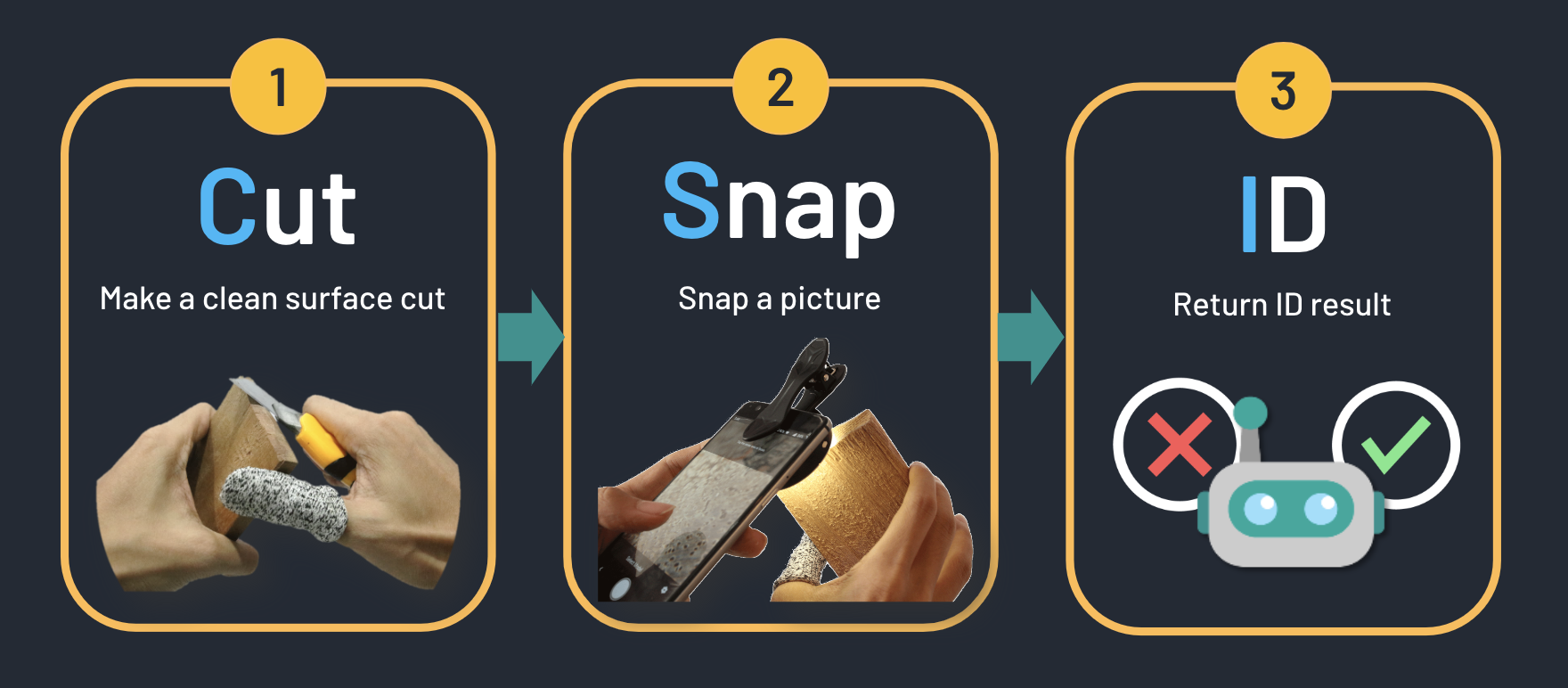
#TLDR: Wood ID in 3 Simple Steps: C-S-I
Camera → Select → Identify
Preparing Woods for Identification/Verification
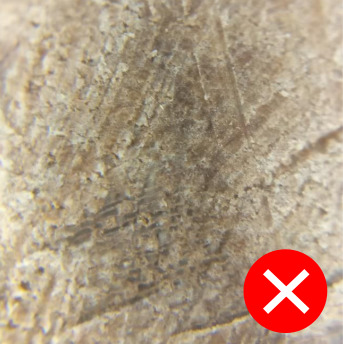
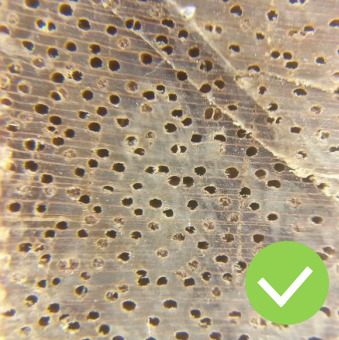
- Make a cut on the wood's end-grain/transverse surface to reveal macroscopic features.
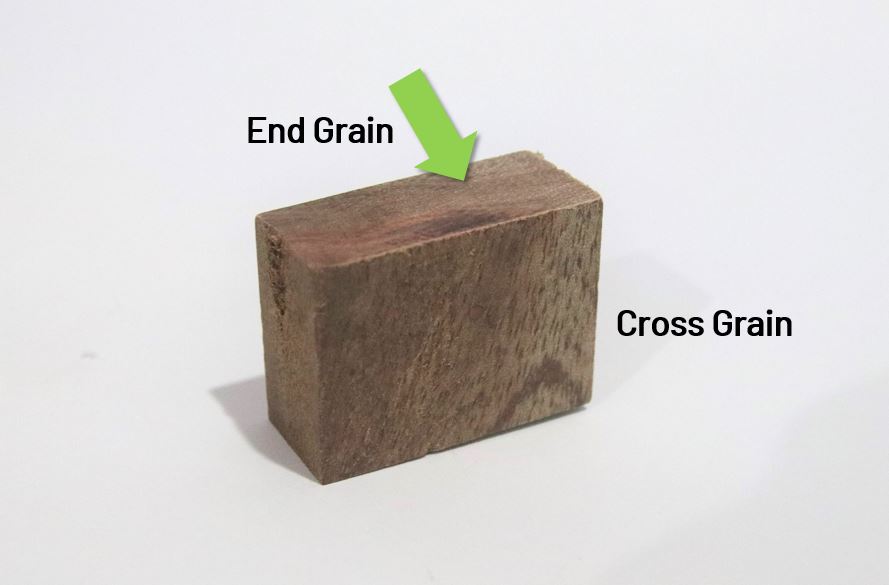
- Make sure the wood macroscopic feature is visible for wood identification using the Inspector App.
User Guide Video
Available in different languages on YouTube [Older version]:
Step-by-Step Guides
How to Identify or Verify Wood
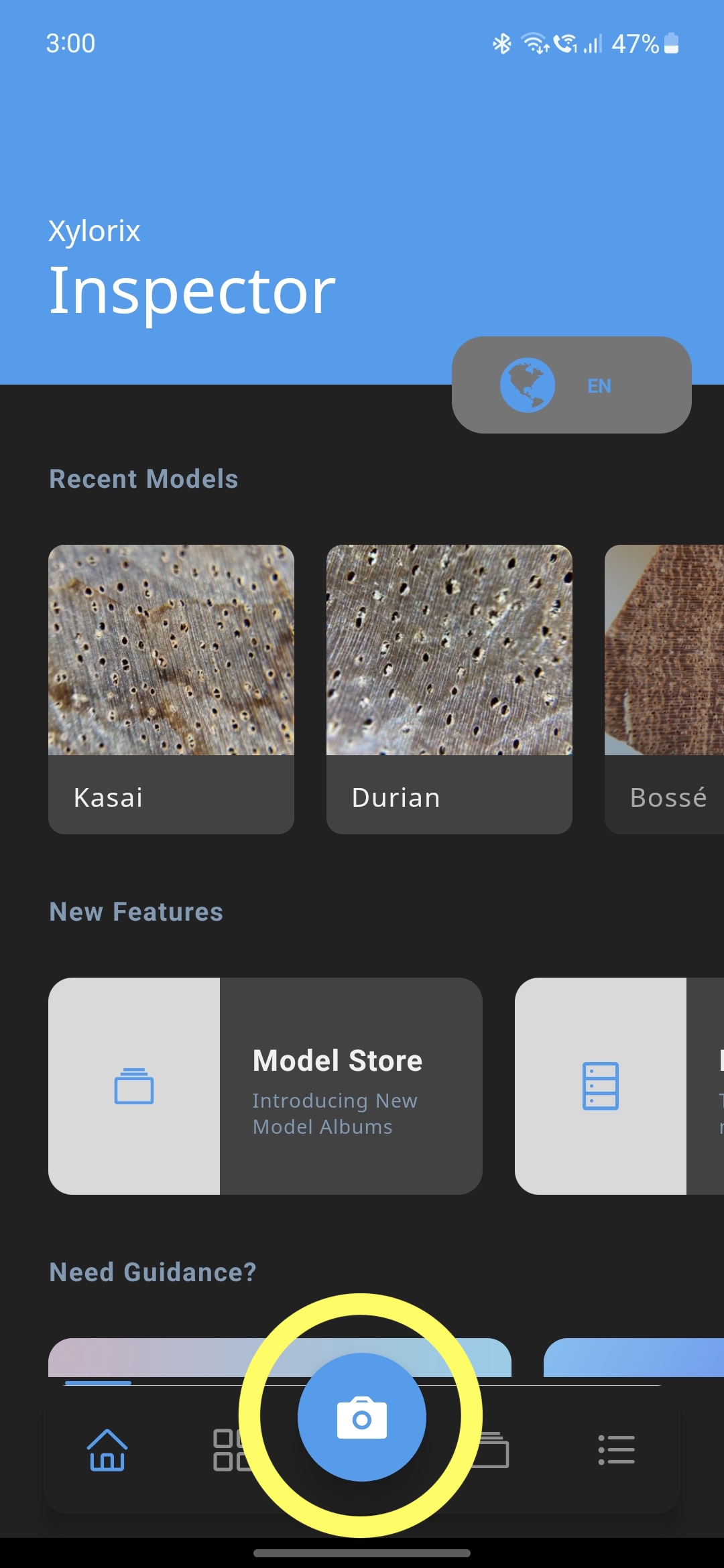
Go to Camera
Tap on the 'CAMERA' button on the bottom navigation bar to begin wood identification/verification process.
Select IDENTIFY or VERIFY
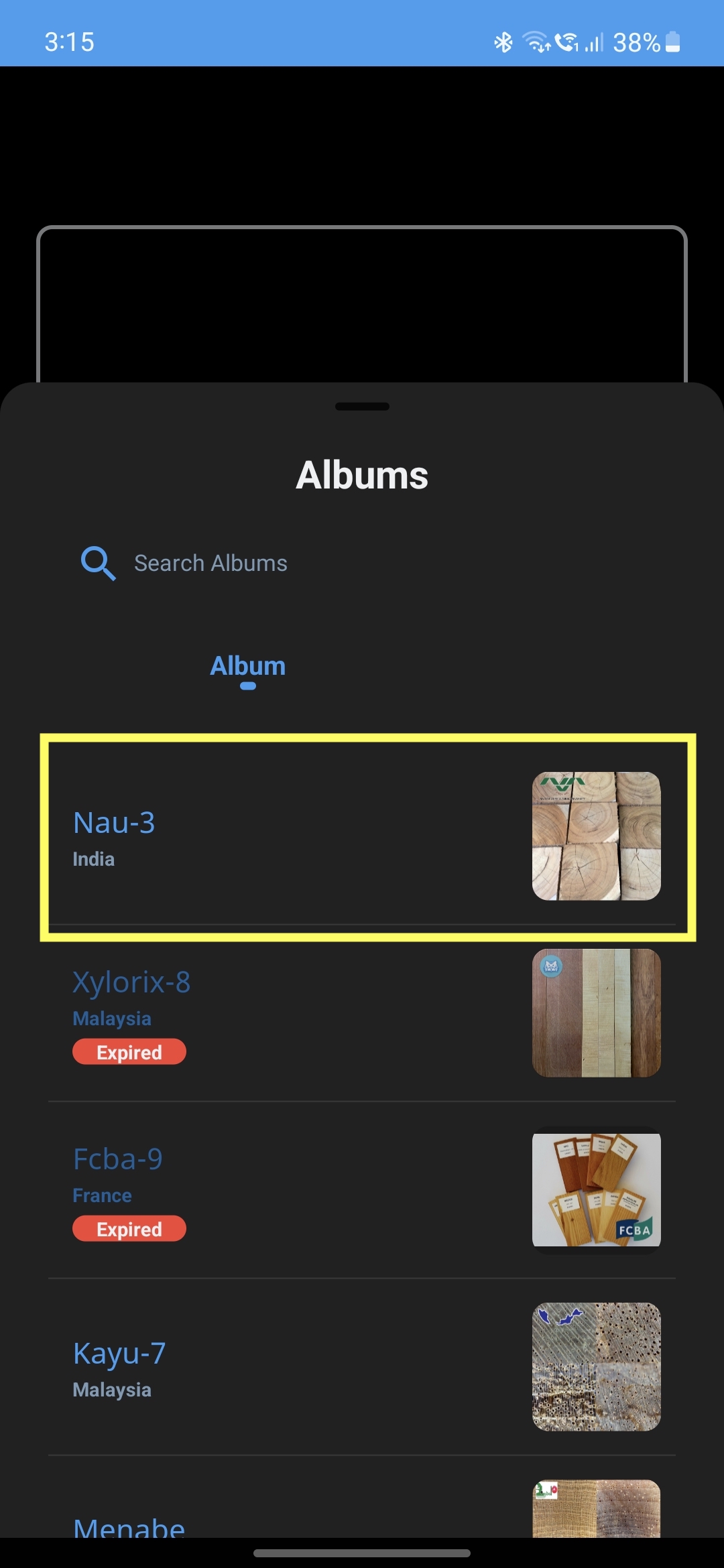
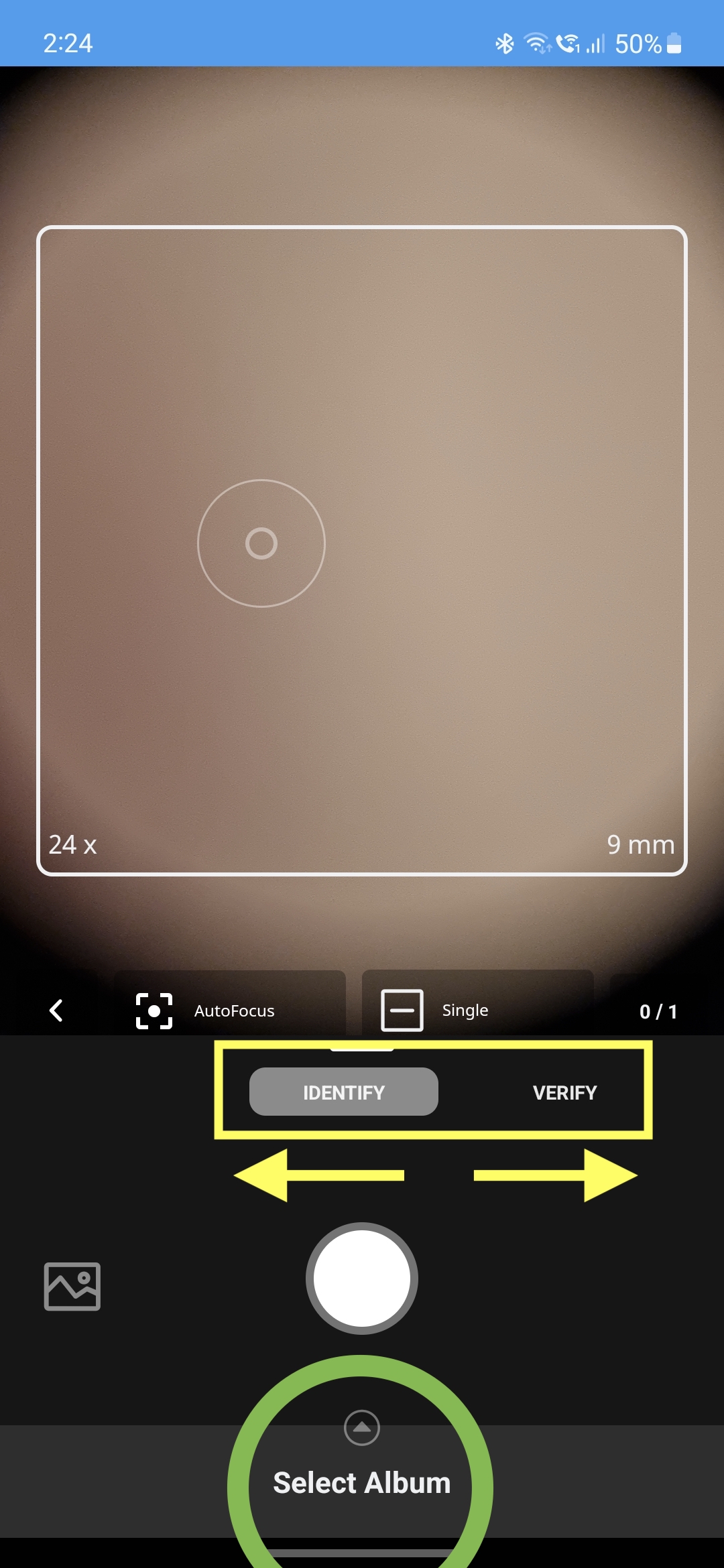
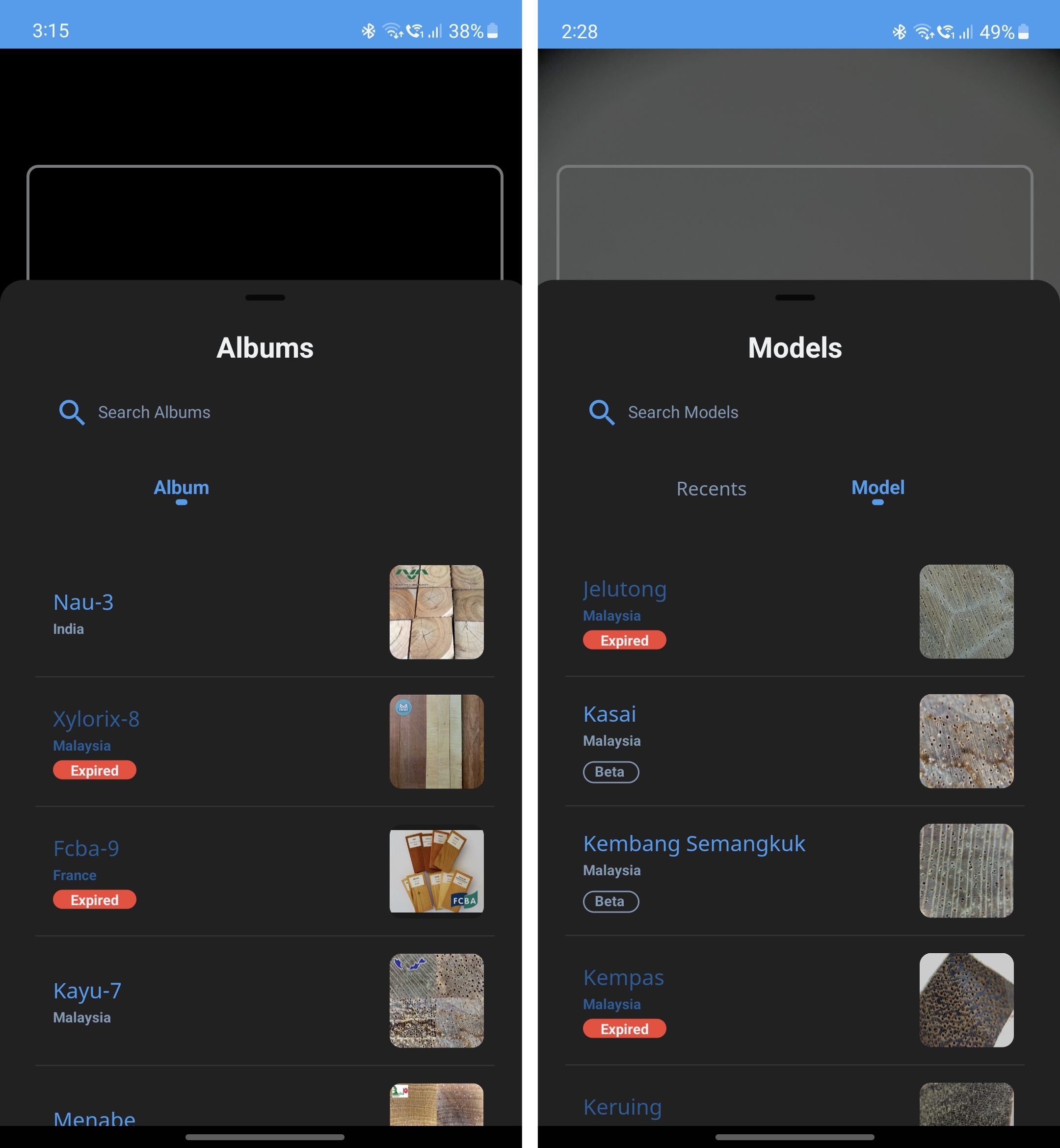
Select between IDENTIFY and VERIFY features (IDENTIFY is default). IDENTIFY generates the ID results of all models within the album. VERIFY generates the ID result of ONE selected model. Tap the bottom button to bring up the Model Album and Model selection menu (highlighted green circle).
Select Model Album or Model
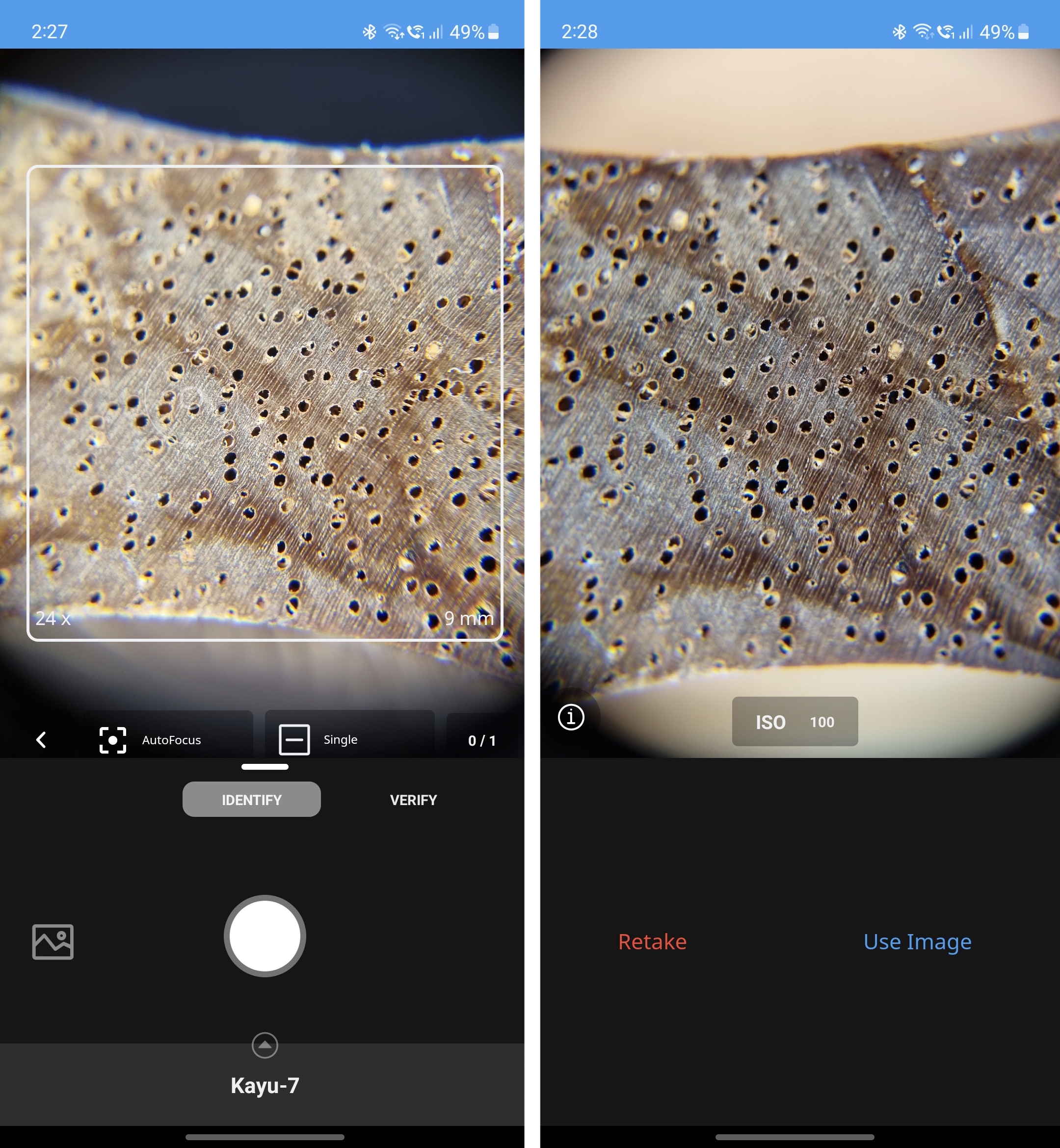
For IDENTIFY, select a Model Album to continue. For VERIFY, select a Model to continue. After selection, engage the Camera by tapping on the solid white button.
Capture and Submit Picture
Make sure the wood anatomy characteristic is visible and the image is clear at least at the center part. Press the 'Use Image' button to submit the image for identification, or press the 'retake' button to recapture the image.
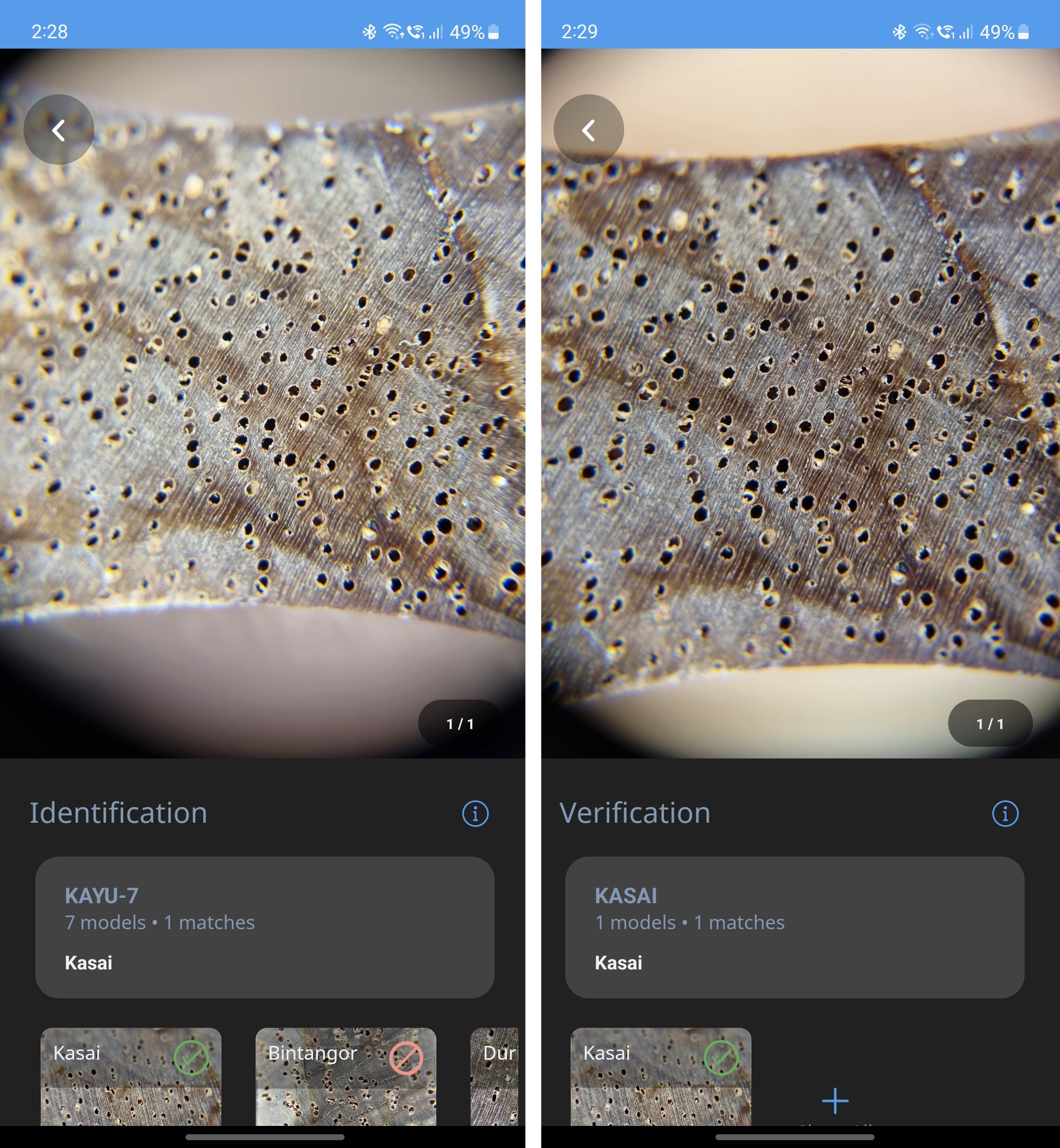
Obtain ID Results
The IDENTIFY and VERIFY results will be ready in seconds. The prediction result indicates if the wood is the selected wood type. You can tap on the result box to toggle prediction value.
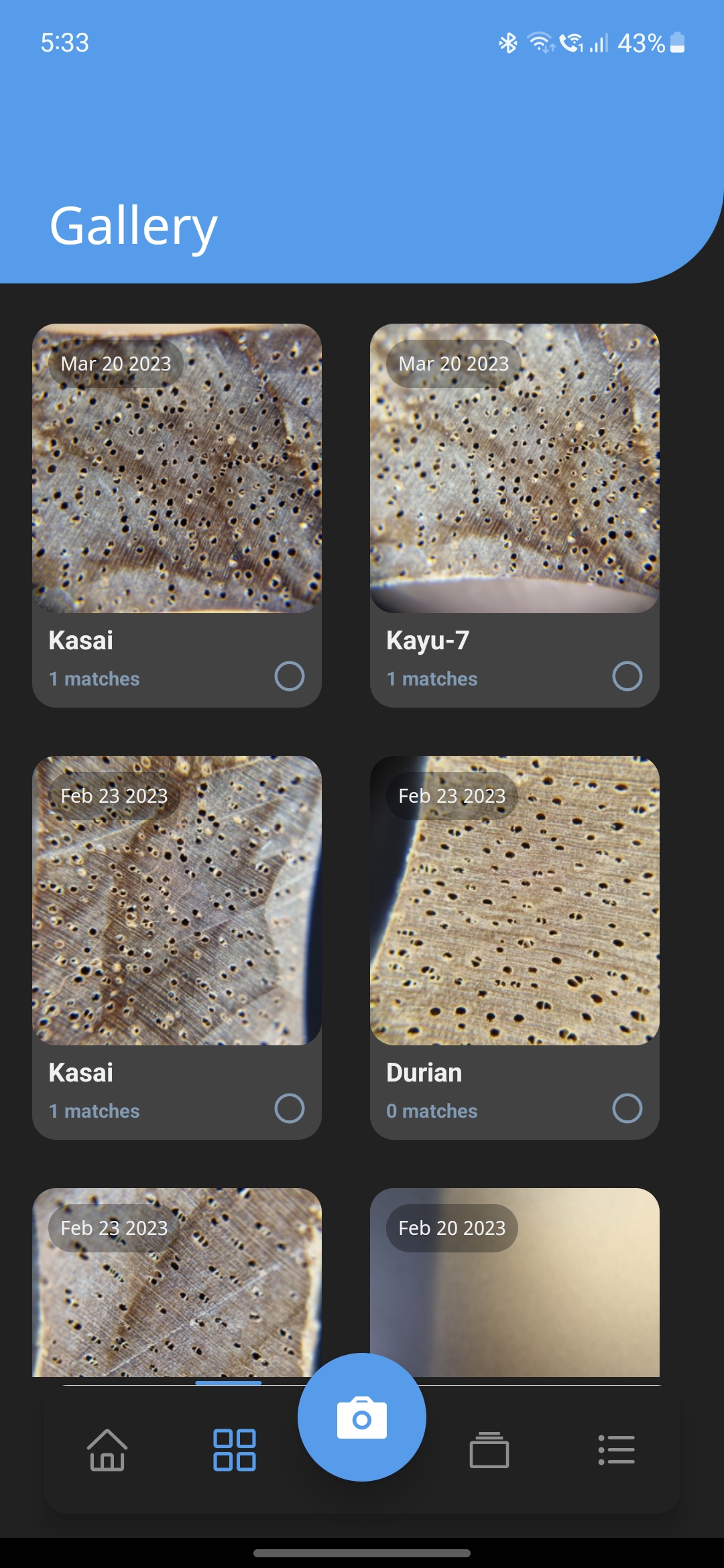
Done!
All identification and verification results history can be viewed in the Gallery page (2nd button from the left in the bottom navigation bar).
How to Subscribe/Resubscribe to a Model Album
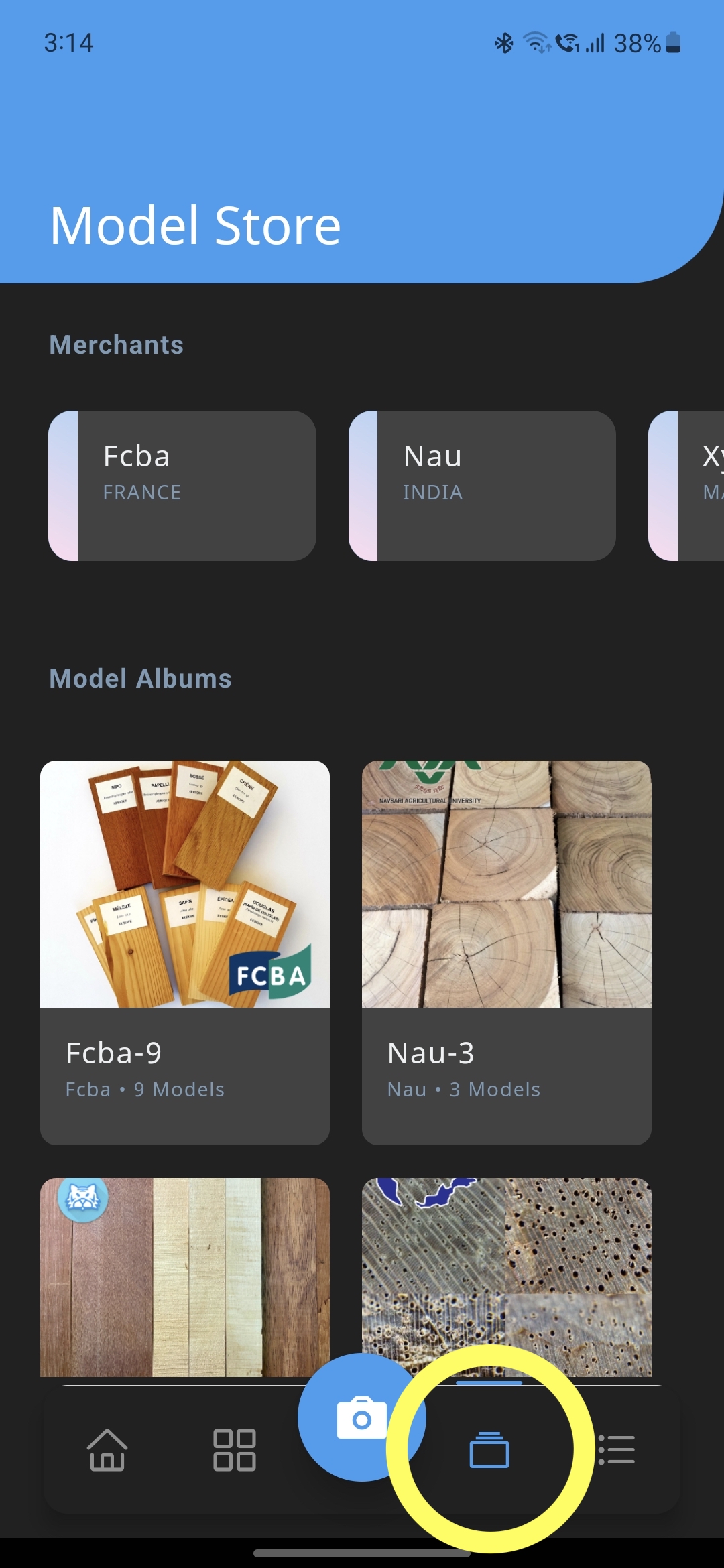
Go to the Model Store
Tap on the Store icon (2nd from right) at the bottom bar to enter the Model Store. Tap on any of the interested Model Albums.
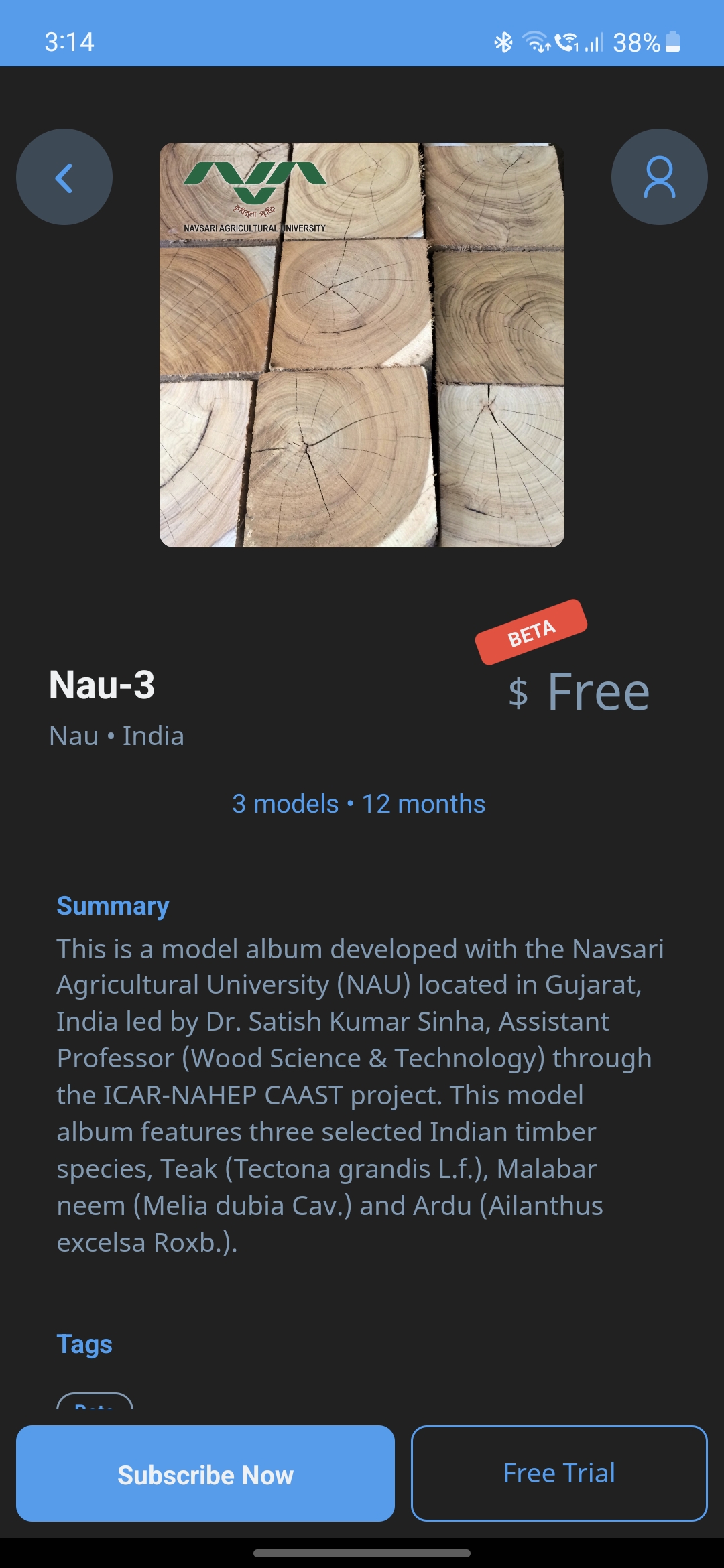
Select SUBSCRIBE / FREE-TRIAL
Tap Subscribe to attain access to the album. Users are entitled to one (1) year access of a free album, while a free trial for both free and paid albums lasts for one (1) month. If your subscription is expired, simply resubscribe again (no payment needed for free albums).
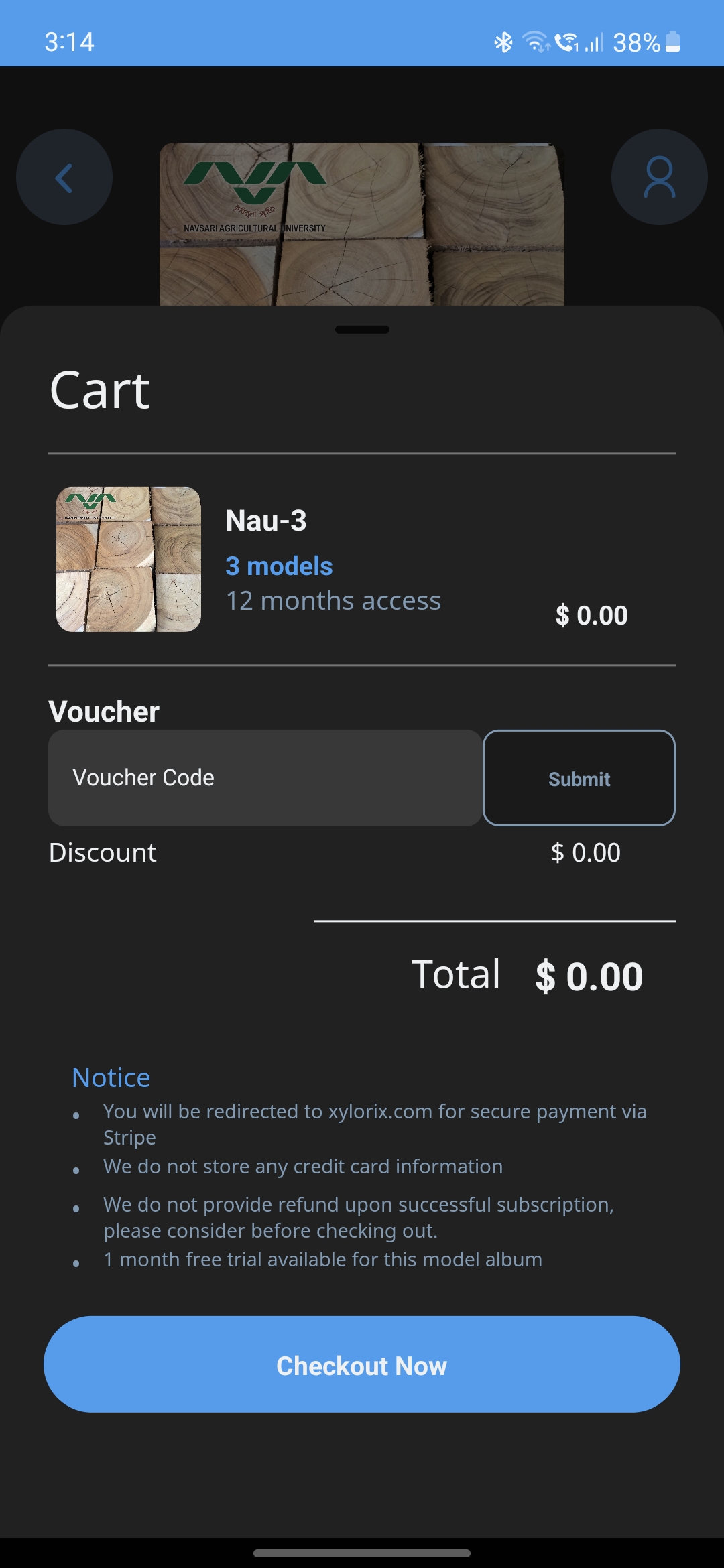
Check out with Payment Info (paid album)
Fill in payment info and continue to complete the subscription process. For a free album or free trial, simply tap the Check Out button.
Congratulations!
You have successfully subscribed to the model album.
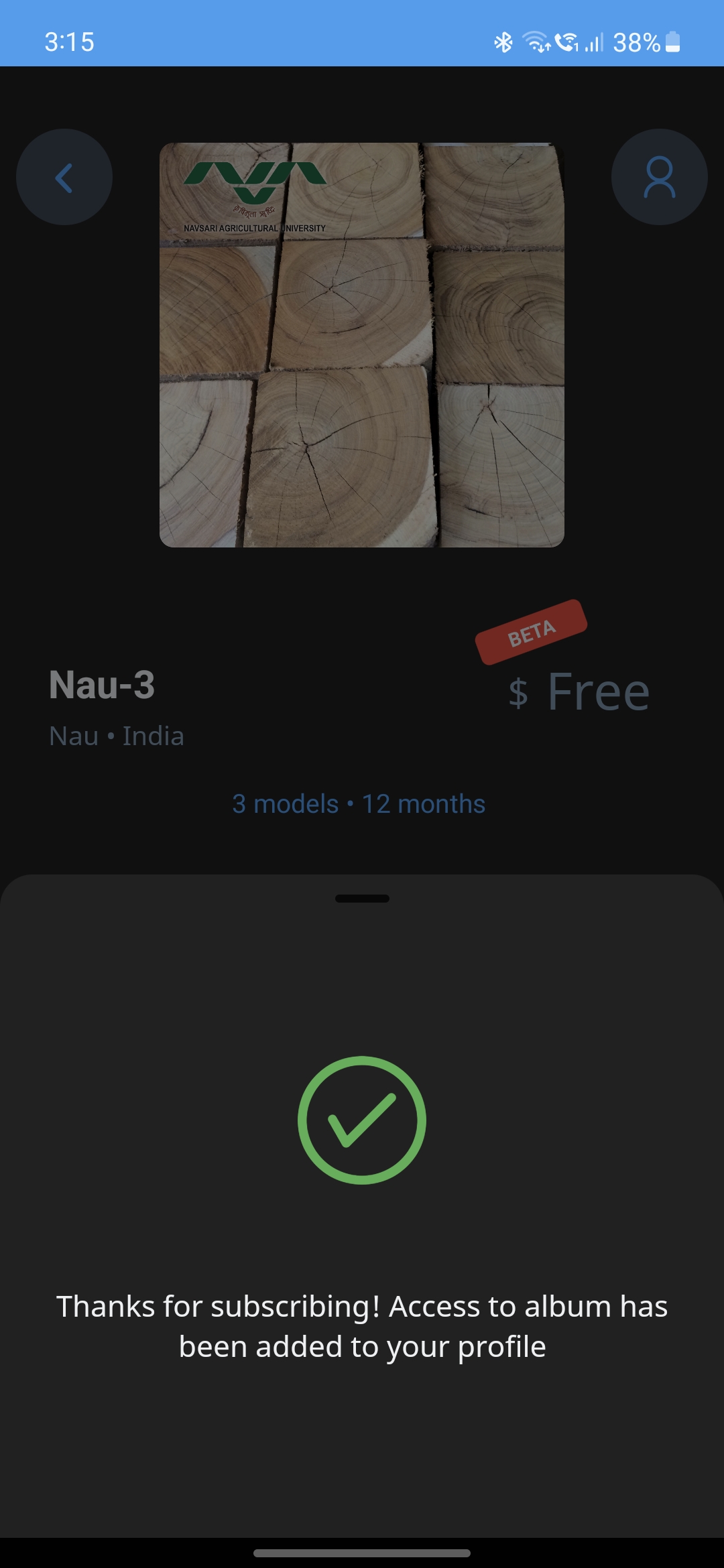
The model album should show up in the available album list, with its models available in the VERIFY functionality as well.